Editing
Captions
Captions made from your transcript, in looks from a quiet serif line to word-by-word pop.
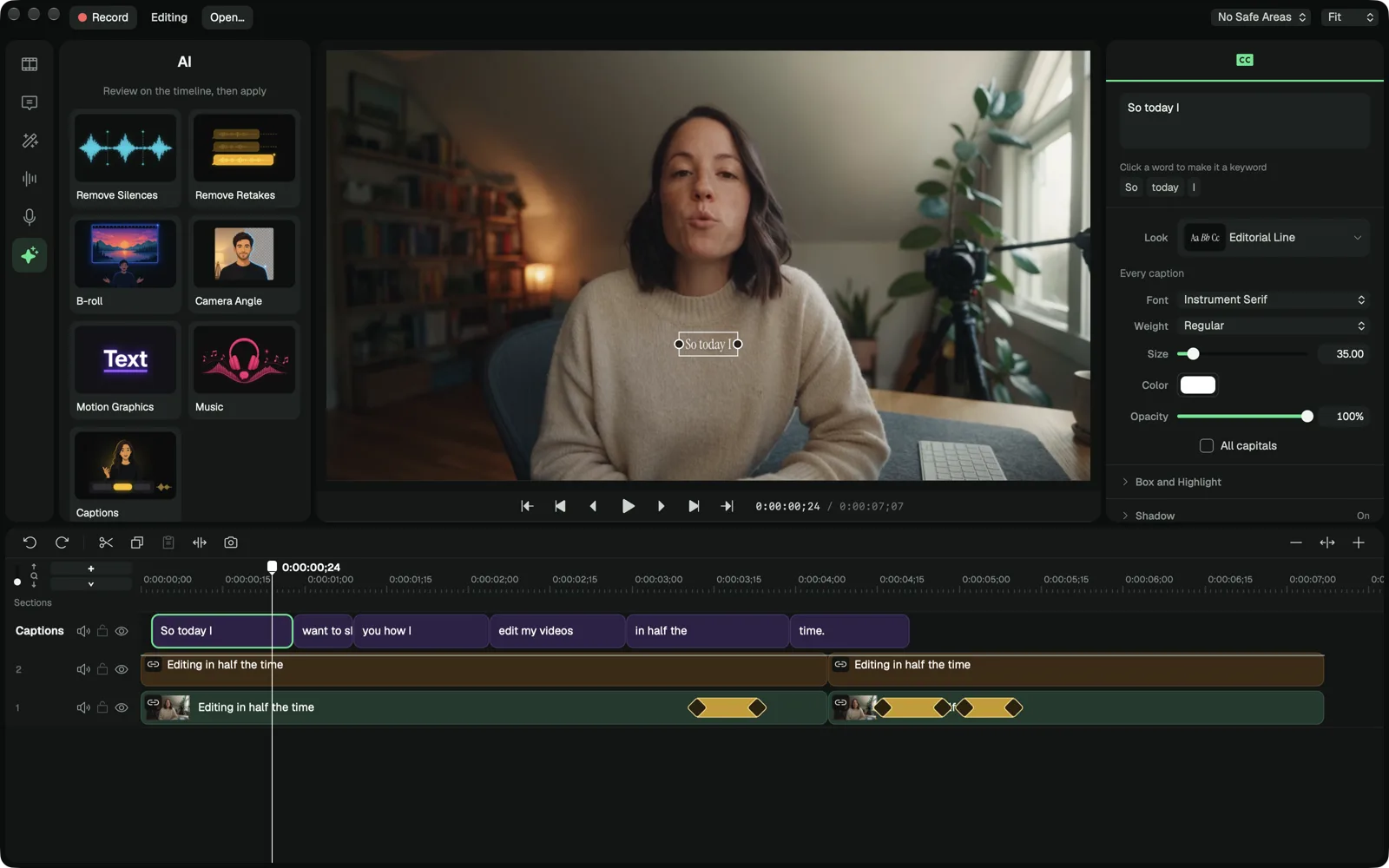
AI panel › Captions (or : then K) turns the transcript into captions: each phrase becomes a clip on a Captions track at the top of the timeline, timed to your words. If you’ve set an in/out range, only that part is captioned.
Looks
Pick a Look for the whole track, each previewed on the canvas as you point at it: Classic (a dark box, the spoken word in yellow), Editorial Line (a small, quiet serif), Karaoke, Word Pop and more. Then change the Font, Size, Color, the Box and Highlight and the Shadow to make it yours.
Edit a caption
Select a caption to fix its words in the properties panel; the words you keep keep their timing. Click a word to make it a keyword, drawn in the look’s emphasis style. If a caption covers your face, move just that one.
Shorts, Reels and TikTok
The Safe Areas menu at the top right draws where each platform’s buttons and captions sit over a 9:16 video, so yours don’t end up under them. Your agent can check every caption against them before export.
Subtitles file
Tick Captions file (.srt) in Export to get a subtitles file next to the video.
Ask for it
Caption this in the Classic look, two lines at most, and make the key word
in each sentence stand out.Checked against Beacon 0.18.0. Something wrong or missing? Open an issue.
Using an AI agent? Point it at /llms.txt, the docs index for agents, or give it every page in one file.